Fixing External Display Resolution on macOS Ventura 13
If you have upgraded to macOS Ventura 13 and your external 4k (3840×2160) display is showing everything in FullHD (1920×1080), don’t worry, there’s a solution!
I faced a similar issue with my Asus VP28U monitor, which was working perfectly fine in the previous macOS v12. I was able to select the resolution using the traditional options: “Large Text, …, Default, More Space”.
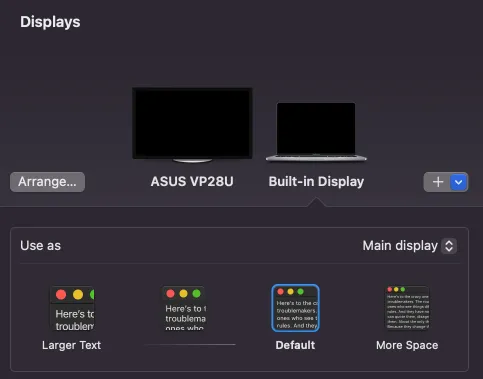
However, after the update, when I went to “System Settings > Displays”, I was presented with a list of resolutions by pixels, and 1920×1080 was marked as the recommended one.
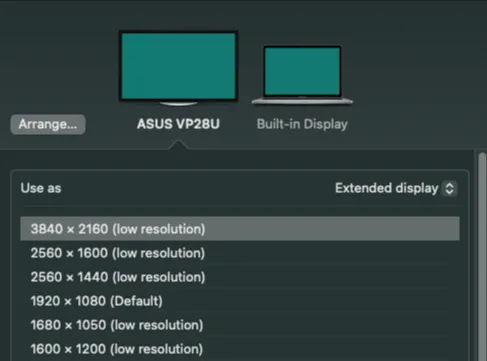
The solution
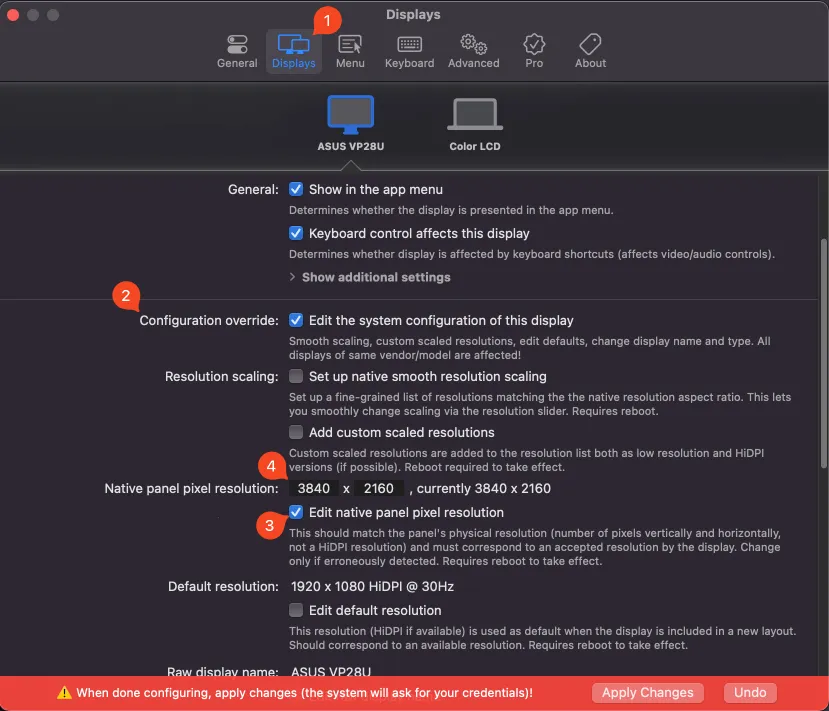
To fix this issue, I had to force the 4k resolution in the system. Here are the steps I followed:
- Download and install BetterDisplay.
- Open BetterDisplay settings and navigate to the “Display” tab.
- Under “Configuration Override,” mark “Edit the system configuration of this display.”
- Under “Native Panel Pixel Resolution,” mark “Edit native panel pixel resolution.”
- Change the resolution value from 1920×1080 to 3840×2160.
- Save the changes and restart your Mac.
After completing these steps, you should be able to see the traditional macOS resolution selector.